How to open and convert HEIC photos on Windows (free)
iPhone HEIC photos won’t open or upload? Four free fixes: Windows’ own extensions, an iPhone setting, a free browser converter, and batch conversion.
Free · no account · 3 free uses of every tool · also for Mac (Intel), Windows, Linux
iPhones save photos as HEIC to save space. Windows, many websites and printers expect JPG. Here are the free fixes, simplest first.
1. Convert a few photos in your browser
Our free HEIC to JPG converter runs in the browser tab — several photos at once, nothing uploaded.
2. Let Windows open them
Install Microsoft’s free HEIF Image Extensions from the Microsoft Store. Some PCs also need the HEVC Video Extensions, which cost $0.99 in the Store (many PC makers pre-install them). The Photos app can then open HEIC and “Save as” JPG one at a time.
3. Stop the iPhone making HEIC
On the iPhone: Settings → Camera → Formats → Most Compatible. New photos are saved as JPG (files are a bit bigger). Photos already taken stay HEIC.
4. Convert whole folders
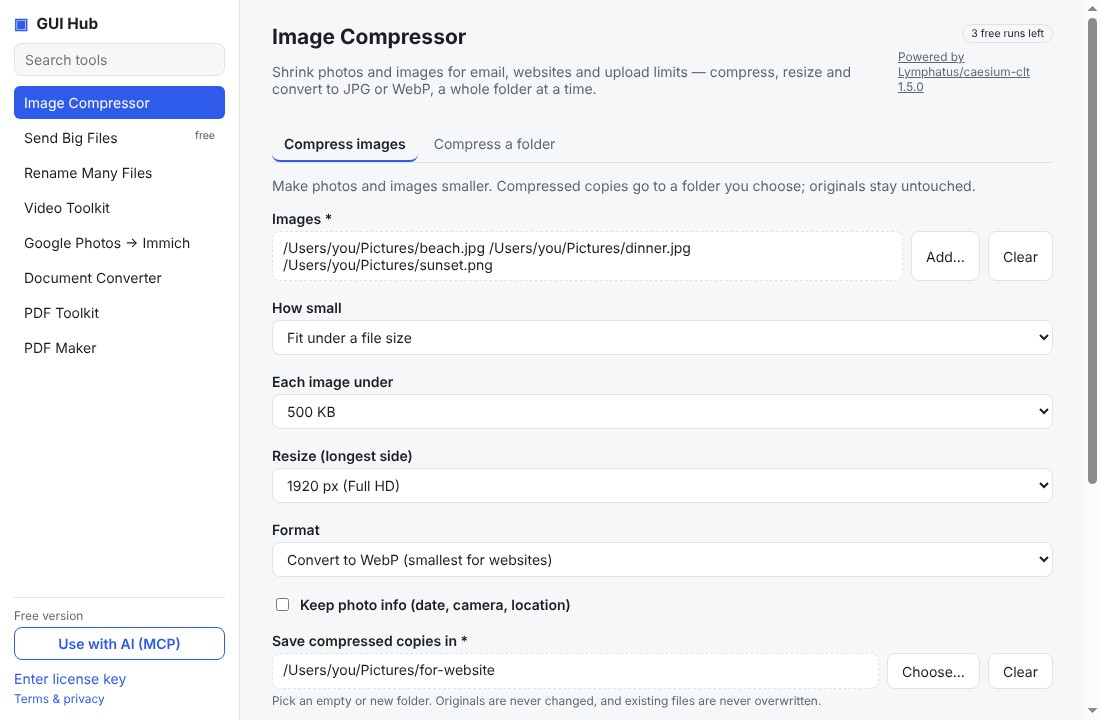
For hundreds of photos, select them all at once in the free converter above (it handles many files, nothing uploaded). Once they’re JPGs, the GUI Hub Essentials Image Compressor can shrink whole folders and fit each under a size limit — or ask your AI: “make every JPG in this folder under 1 MB”.
Try it now
Free download — use it 3 times free. $9 once unlocks everything. Prefer to ask your AI? GUI Hub also works as an MCP server for Claude, Cursor and others.